Aerospace Data Analysis
Data analytics and automated finite element workflows for aerospace and advanced engineering applications.
01 — About
I'm Vlad Radulescu, an aerospace engineer with a focus on structural analysis, finite element methods, and the physics that govern systems operating in extreme environments.
With over 15 years of hands-on experience in Aerospace, I bring pragmatic industry knowledge to every data project I take on. Holding a Master of Engineering degree in Aerospace Engineering from McGill University, I combine academic rigor with practical, real-world expertise to deliver high-quality results for my clients.
My work spans the intersection of classical engineering fundamentals and modern computational methods. I approach every engagement with rigor, curiosity, and a commitment to results that hold up under scrutiny.
Focus Areas
Industries Served
Tools & Methods
02 — Services
01
Data Analytics & Finite Element Analysis Modeling Software
Data-driven engineering analytics and finite element model software development, built on the principle of automated, scalable NASTRAN workflows — see nastran.mvr-analytics.com.
02 - Pending
Drone Operations & Aerial Imaging
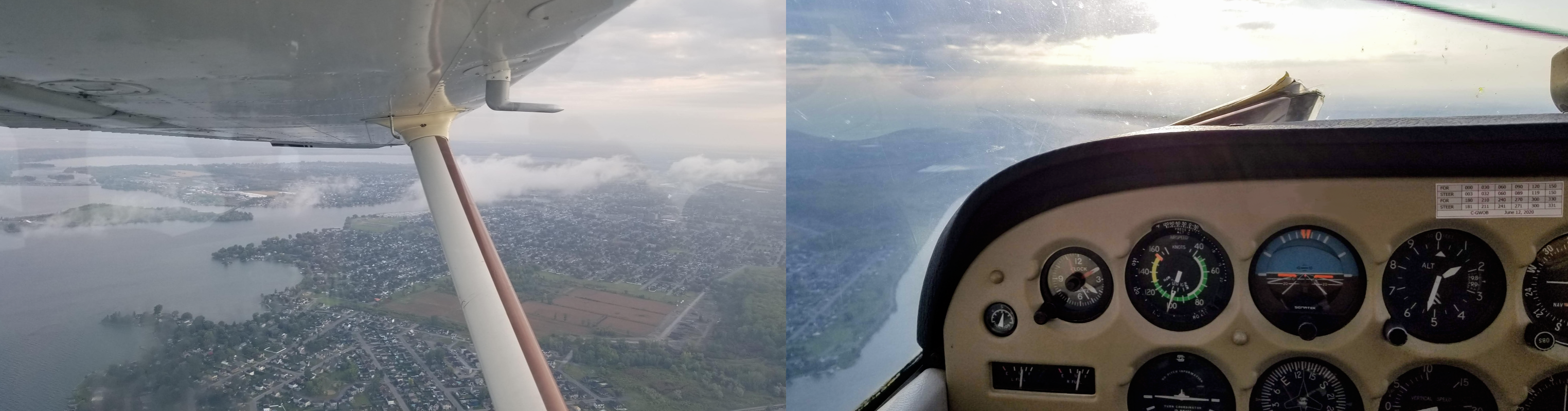
Aerial photography, videography, and site/asset inspection flights. Currently completing FAA 14 CFR Part 107 Remote Pilot certification — available for engagements once certified.
03
3D Printing & Rapid Prototyping
3D printing for prototypes, functional test parts, and small-batch custom components. From your design file to a finished print, or design support drawing on an engineering background.
Scope varies by project. Engagements range from focused hourly reviews to multi-week deliverables.
03 — Contact
Location
San Jose, USA. Available remotely & on-site visits
Response time
Within 1–2 business days
Availability
Currently accepting new projects
04 — Tutorials
Goal
A simple landing gear strut example where a 3-member assembly (members O–A, O–B, O–C) resists vertical and drag force similar to those on a landing gear. Build a strut model similar to Section 2.3, Example 1 in Peery's Aircraft Structures, with single-point restraints and a single-point force at the tip of the strut. Find the loads in the two-force members O–A, O–B, O–C and compare the results with the hand-calculation equivalent.
References
Peery, J. David. Aircraft Structures. Dover Publications (2011), originally McGraw-Hill Book Company Inc., 1950, New York.
Part 1Create a Node Set to represent the strut nodes O, A, B, C. Using the Node Create tool, enter locations directly in the command line (coordinate system is global/basic):
Then add 10 nodes in between each pair (Node-in-Between tool — pick the first and second node sets, Enter No > 10) for a finer visual mesh along each member. Deselect All before continuing.
Select the Beam Element tool, then the Element Create tool, to connect tip node O to each of A, B, and C in turn — three elements total.
Create a steel material: Create ▸ FEM Tools ▸ Material ▸ Isotropic. Then a round-tube beam section referencing it: Create ▸ FEM Tools ▸ Property ▸ Beam Tube.
Tools ▸ Element Modify ▸ Property ID — select all three elements, Right Click ▸ Done, key in the Beam Tube property's ID.
Tools ▸ Checks ▸ Merge Coincident Nodes — box-select all nodes, Done, accept the default tolerance, then delete any duplicates it finds. Good practice before solving.
LoadsBC ▸ Load Sets — add a Set ID and title, Create, then OK. The new set becomes the active one automatically.
LoadsBC ▸ BC Sets — same pattern as Load Set.
LoadsBC ▸ Create Restraint — pick nodes A, B, and C. Translation Restraint Vector 1 1 1 (fixed), Rotation Restraint Vector 0 0 0 (free) — a true pin at each, matching the two-force-member assumption.
LoadsBC ▸ Create Force — pick node O. Force vector in the command line:
If needed, refine the value afterward via Edit Object Values ▸ pick the force vector ▸ Entity Editor.
Solution ▸ Create Solution — Solution Type Linear Static, Tolerance default. Create, then OK.
Solution ▸ Create Solution Step — select the Load Set and BC Set (no Temperature Set), add a Step Title. Create, then Activate, then OK.
Solution ▸ Solve. The run should take a second — console output ends with:
Solved successfully, with a negligible final iteration error.
Deformed Results ▸ Select Displacements ▸ OK, then the Deformed Shape button to view it. If it's hard to see, use Change the Deformation to rescale (e.g. 10). Contour plot (Select Contour Results) gives per-node displacement components:
Deformation at point O is hard to estimate by hand (it depends on the interaction of all three deforming/rotating members) — not attempted here.
With a deformed shape selected, click Animate to breathe the shape between undeformed and deformed.
Select Contour Results ▸ END B FX for axial load, then pick each member's end element individually:
Close to the hand-calculation estimate — see Appendix 1 below.
This completes Part 1 of the tutorial. See the appendices below for the hand-calculation check.
Assuming the force is eccentric, 6 inches laterally off point O to simulate a wheel axle. Find the forces at A, B, and C assuming members O–B and O–C are two-force members (SPC 123) while O–A resists bending and torsion, and point A is a universal joint that can carry torsion but no bending (SPC 12356).
Add one more node, 6 inches off O, to represent the eccentric load application point:
Same pattern as Part 1, reusing the same material and Beam Tube property.
Same as Part 1 — good practice to repeat after adding the new node.
Reuse the same Load Set and BC Set from Part 1 — just press OK without creating new ones.
If modifying the Part 1 model directly, filter-select and delete the existing restraint at point A first, then recreate it:
Remove the force at O (if reusing the Part 1 model), then apply the same vector at the new eccentric node:
Same steps as Part 1.
Larger than Part 1 — the eccentric load imparts bending and torsion that Part 1's pure axial load didn't.
Note the torsional deformation present here that Part 1 didn't have.
Loads increase compared to Part 1, as expected. Note the FEM torsion output doesn't match the hand calc's torsion estimate — see Appendix 2.
This completes Part 2. See the appendices below for the hand-calculation check.
Appendix 1 — Element Force Check (Part 1)
Member forces estimated by hand, assuming each member takes only axial load along its own axis (i.e. as if the elements were rods rather than beams — close enough to approximately corroborate the model).
| Property | Value |
|---|---|
| Do (outer diameter) | 1 in |
| t (wall thickness) | 0.1 in |
| Di (inner diameter) | 0.9 in |
| A (area) | 0.5969 in² |
| J (torsion constant) | 0.0039794 in⁴ |
| I (moment of inertia) | 0.2700984284 in⁴ |
| Point | X | Y | Z | Length | x̂ | ŷ | ẑ |
|---|---|---|---|---|---|---|---|
| A | 0 | 30 | 40 | 50 | 0.000 | 0.600 | 0.800 |
| B | 20 | 30 | 40 | 53.85 | 0.371 | 0.557 | 0.743 |
| C | 30 | 0 | 40 | 50 | 0.600 | 0.000 | 0.800 |
| Member | Hand calc | FEM | % diff |
|---|---|---|---|
| O–A | -5,000.00 lbf | -4,998.33 lbf | -0.03% |
| O–B | 5,385.16 lbf | 5,383.02 lbf | -0.04% |
| O–C | -5,000.00 lbf | -4,998.85 lbf | -0.02% |
Appendix 2 — Element Force Check (Part 2)
Hand calc assumes O–B and O–C take only axial load along their own axes, while O–A also carries torsion. The torsion load is resolved first, then the force-sum equations are set up with one unknown each. Note the FEM torsion output doesn't match the hand-calc torsion estimate (T vs. END B BX) — flagged in the original tutorial as a known discrepancy, not a modeling error to chase down.
| Hand calc | FEM | % diff | |
|---|---|---|---|
| FA | -5,701 lbf | -5,634.04 lbf | -1.17% |
| FB | 6,806.85 lbf | 6,844.49 lbf | 0.55% |
| FC | -6,000 lbf | -5,974.20 lbf | -0.43% |
| Ts | 2,880 in·lbf | — (not separable in FEM output) | — |
| Tv | 3,840 in·lbf | — (not separable in FEM output) | — |
| T | 4,800 in·lbf | 617.59 in·lbf | -87.13% |
Tutorials/StrutExample_M3d.docx in the nastran-visualizer-vite repo.Goal
Create a simple beam model (a truss-like structure) with single-point restraints and a single-point force at the tip. First create nodes and elements, then assign material properties and orientations. Forces and boundary conditions are set, a solution is created and solved, then results are post-processed for deformation and element forces — corroborated against a hand calculation.
Create a Node Set to represent the beam:
Add 6 nodes in between (Node-in-Between tool) for a finer visual mesh along each segment. Deselect All before continuing.
Beam Element tool, then Element Create — connect A–B and B–C.
Create a steel material: Create ▸ FEM Tools ▸ Material ▸ Isotropic. Then an I-beam section referencing it: Create ▸ FEM Tools ▸ Property ▸ Beam I2.
Tools ▸ Element Modify ▸ Property ID — select both elements, key in the Beam I2 property's ID.
Tools ▸ Element Modify ▸ Beam Up Vectors — box-select both elements, Done, Key In the up vector:
An I-beam's bending stiffness depends on which way it's facing, unlike the Strut example's round (axisymmetric) tube. Section properties can be refined afterward via Edit Properties Values ▸ pick an element ▸ Entity Editor.
Tools ▸ Checks ▸ Merge Coincident Nodes — box-select all nodes, accept the default tolerance, delete any duplicates found.
LoadsBC ▸ Load Sets, then LoadsBC ▸ BC Sets — add a Set ID/title, Create, OK for each. Both become active automatically.
LoadsBC ▸ Create Restraint — pick node A only. Translation Restraint Vector 1 1 1, Rotation Restraint Vector 1 1 1 — fully fixed, a true cantilever root.
LoadsBC ▸ Create Force — pick node C (the free tip). Force vector in the command line:
Refine via Edit Object Values ▸ Entity Editor to a larger negative value, FY = -100000, for a clearer result.
Solution ▸ Create Solution — Linear Static, default tolerance. Create, then OK.
Solution ▸ Create Solution Step — select the Load Set and BC Set, add a Step Title. Create, then Activate, then OK.
Solution ▸ Solve. Console output:
Solved successfully, with a negligible final iteration error.
Deformed Results ▸ Select Displacements ▸ OK, then Deformed Shape to view it. Rescale (e.g. 100) if hard to see. Contour plot gives per-node displacement:
Close to the hand-calculation estimate — see Appendix 2 below.
With a deformed shape selected, click Animate.
Select Contour Results ▸ END B FX for axial load:
Both close to the hand-calculation estimate — see Appendix 1 below.
This completes the tutorial. See the appendices below for the hand-calculation check.
Appendix 1 — Element Force Check
Member forces estimated by hand, assuming the truss structure members take only axial load along their own axes (as if rods rather than beams — close enough to approximately corroborate the model).
| Quantity | Value |
|---|---|
| P (applied load) | -100,000 |
| Height | 3 |
| Length | 4 |
| Angle Θ | 0.644 rad (36.87°) |
Summing forces about point C (ΣFx = F1 + F2·cos Θ = 0, ΣFy = P + F2·sin Θ = 0):
| Member | Force | Sense |
|---|---|---|
| E1 (= -F1, top/B–C) | 133,333 | Tension |
| E2 (= -F2, diagonal/A–B) | -166,667 | Compression |
Appendix 2 — Element Deformation Check
The beam elements are estimated as axial springs (k = A·E/L) to get a first-order deformation estimate.
| Quantity | Value |
|---|---|
| dim1 (height) | 0.4 |
| dim2 / dim3 (flange width) | 0.2 / 0.2 |
| dim4 (web thickness) | 0.01 |
| dim5 / dim6 (flange thickness) | 0.005 / 0.005 |
| Area, A | 0.002 m² |
| Modulus, E | 70,000,000,000 Pa |
| L1 (B–C) / L2 (A–B) | 4 / 5 |
| k1 = A·E/L1 | 35,000,000 |
| k2 = A·E/L2 | 28,000,000 |
| Quantity | Value |
|---|---|
| δ1 = EF1/k1 | 0.0038 |
| δ2 = EF2/k2 | -0.0060 |
| δx = δ1 + δ2·cos Θ (point C) | -0.0010 |
| δy = δ2·sin Θ (point C) | -0.0036 |
Tutorials/Beam_w_WebExample_M3d.docx in the nastran-visualizer-vite repo.